




OnlyFans Mass Message Ideas and Examples: 30 Messages and How to Send Them
In this article (9)
- How do you send a mass message on OnlyFans?
- OnlyFans mass message ideas and examples
- How to write OnlyFans mass messages that sell
- How to send a mass message on OnlyFans step by step
- How often should you send OnlyFans mass messages?
- Can you send a mass message to expired fans?
- Mass messages vs direct messages
- Send OnlyFans mass messages automatically with OnlyStack
- Frequently asked questions
The 30 mass message examples below are grouped by goal and ready to copy: change the details to fit your page and send. Who you send a mass message to, and when, matters as much as the words.
After the examples: how to write one that gets opened and bought, how to send, schedule and unsend it step by step, and how often to send. Need shorter lines for posts? Use the free OnlyFans caption generator.
How do you send a mass message on OnlyFans?
To send an OnlyFans mass message, open Messages, click the plus icon and choose New Message. Write your text, add media from your device or vault, and set a price if it is PPV. Pick which fan lists receive it, exclude any you want to skip, then send it now or schedule it for later.
OnlyFans mass message ideas and examples
A mass message goes to many fans at once, so it works best with one clear goal: say hello, sell a PPV, start a conversation, or bring a quiet fan back. Pick the goal first, then the example. Replace anything in [brackets] with your own details, and keep the tone in your own voice.
| Goal | When to send it | Example ideas |
|---|---|---|
| Welcome | Right after someone subscribes | 1–4 |
| Sell a PPV | When you have new paid content | 5–10 |
| Start a conversation | On quiet days, to get replies | 11–15 |
| Win back fans | When fans go quiet or expire | 16–19 |
| Tips and customs | When you take requests | 20–23 |
| Holidays and events | Before a date that matters to fans | 24–27 |
| Promotions | Bundles, discounts and shoutouts | 28–30 |
Welcome message examples
- "Hey, welcome! I'm so happy you're here. Tell me what made you subscribe so I know what you'd love to see."
- "Welcome in! My newest set is pinned on my page. Reply 'hi' and I'll send you a little thank-you."
- "Thanks for joining! I post [days you post], and my DMs are where the extras live. Say hi anytime."
- "Welcome! Quick question to get to know you: [question about their interests]?"
For a full guide, see how to create OnlyFans welcome messages, and for how every kind of message works, OnlyFans messages.
PPV mass message examples
- "Just finished something new and I'm a little obsessed with it. Here's a preview, the full [set or video] is unlocked below."
- "This one isn't going on my wall. It's only in DMs, and only for [price] today."
- "You asked for more [theme], so I made it. Preview attached, the rest is waiting for you."
- "Behind the scenes from my last shoot, with the [number] shots that didn't make it to my feed."
- "For the next 24 hours, my new [set or video] is [price] instead of [regular price]. After that it goes back up."
- "Missed my last drop? Here it is again for anyone who didn't get to open it."
Always attach a free preview with a PPV so fans can see what they are paying for. For more on pricing, see our OnlyFans PPV best practices.
Conversation starter examples
- "Be honest: [option A] or [option B]? I'm planning my next shoot around the answer."
- "What should I post this week? Reply with one word."
- "Rate my outfit today from 1 to 10. No pressure, but I'm hoping for a 10."
- "What's one thing you'd love to see from me that I haven't done yet?"
- "Good morning! What are you up to today?"
Questions get replies, and replies start private chats, which is where most PPV and tips are sold.
Messages to win back quiet and expired fans
- "I miss seeing you in my messages. Here's something I made that I think you'll like."
- "It's been a while! A lot has changed on my page. Here's a free preview of what's new."
- "Your subscription ended, so here's [discount] off if you'd like to come back."
- "Just checking in. Is there anything you'd like to see more of?"
Tip and custom request examples
- "Taking a few custom requests this week. Reply with your idea and I'll send you a price."
- "Tip [amount] and pick the theme of my next post."
- "Top tipper this week gets a personal thank-you video."
- "My tip menu is updated. Reply 'menu' and I'll send it to you."
Holiday and event message examples
- "Happy [holiday]! I made something special for today, preview attached."
- "It's my birthday week and I'm celebrating with you: [offer] until Sunday."
- "Weekend special: everything in my DMs is [discount] off until Monday."
- "Thank you for [number] fans! To celebrate, here's [offer]."
Promotion and bundle examples
- "Bundle deal: get my last [number] sets for [price], less than buying them one by one."
- "Shoutout to my friend [@creator], go say hi. Her page is [description]."
- "New subscription bundles are live: [number] months for [price]. The best deal I've ever offered."
How to write OnlyFans mass messages that sell
- One goal per message. A message that welcomes, sells and asks a question at once usually does none of them well.
- Keep it short. Two or three sentences read in a preview. Put the offer in the first line.
- Sound like a person. Write the way you talk. A mass message should feel like a DM, not an ad. For one-to-one chats, see our OnlyFans chatter scripts.
- Add a free preview to every PPV. Fans rarely pay for something they can't see.
- Choose who receives it. Exclude your top spenders from general offers and message them personally instead.
- Check your wording. Some words can get messages flagged. See our guide to banned words on OnlyFans.
- Read your statistics. After each send, compare how many fans viewed and bought it, and keep the styles that work.
How to send a mass message on OnlyFans step by step
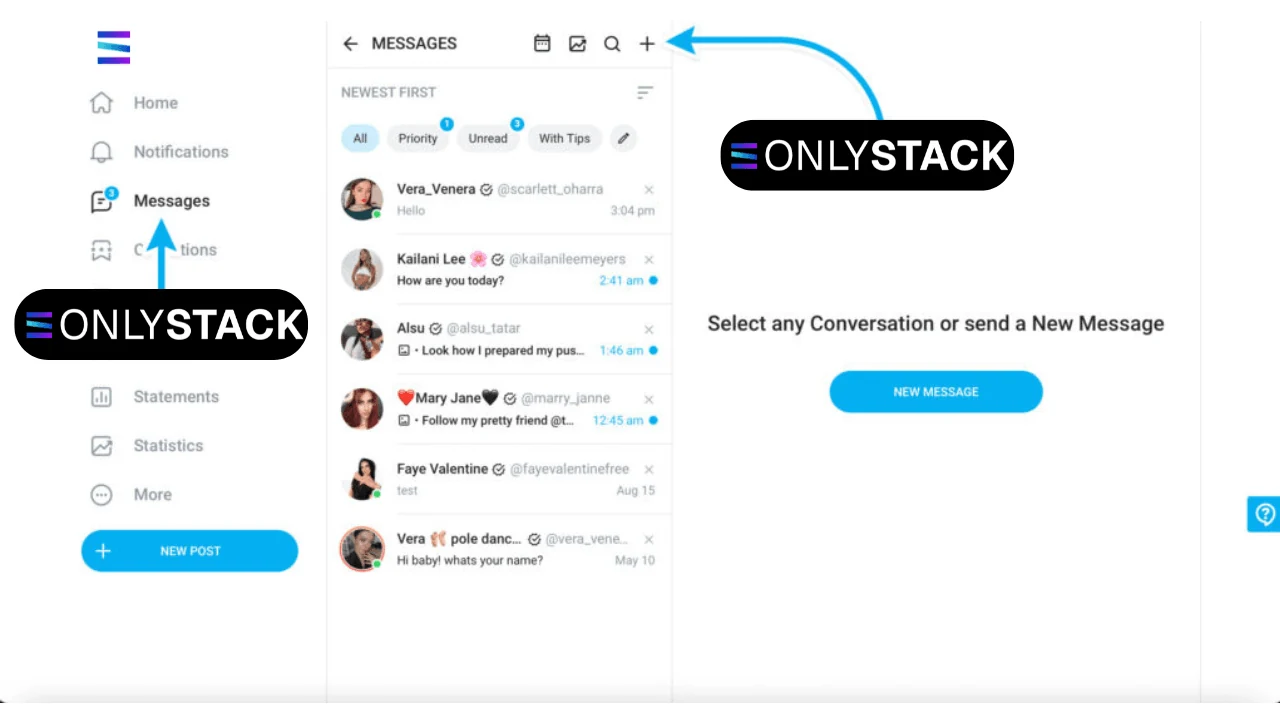
- Open Messages and click the plus button at the top, called New Message.
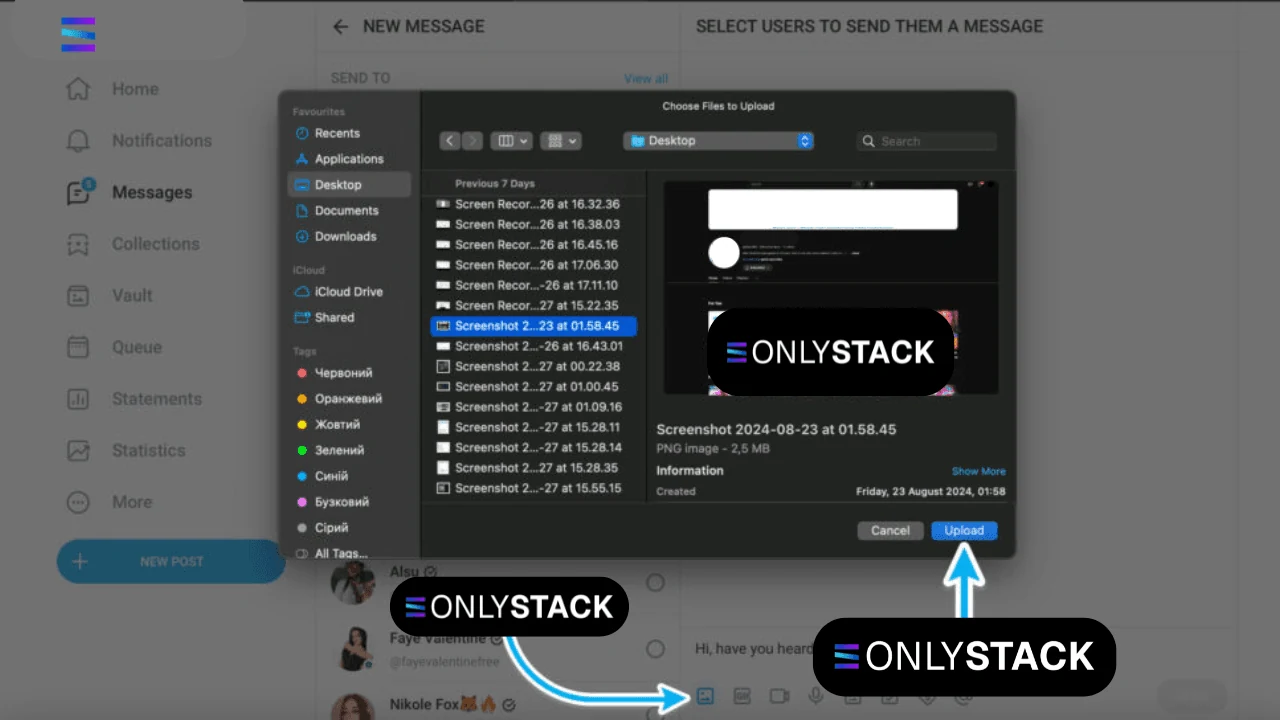
- Write your message. You can add media from your device or your vault, send a GIF, or record a video or voice note.
- To make it a PPV, add media and set a price. You can also tag another creator who appears in the media.
- Choose who receives it, and exclude any lists you want to skip.
- Send it now, or schedule it for later.
How to include or exclude fan lists
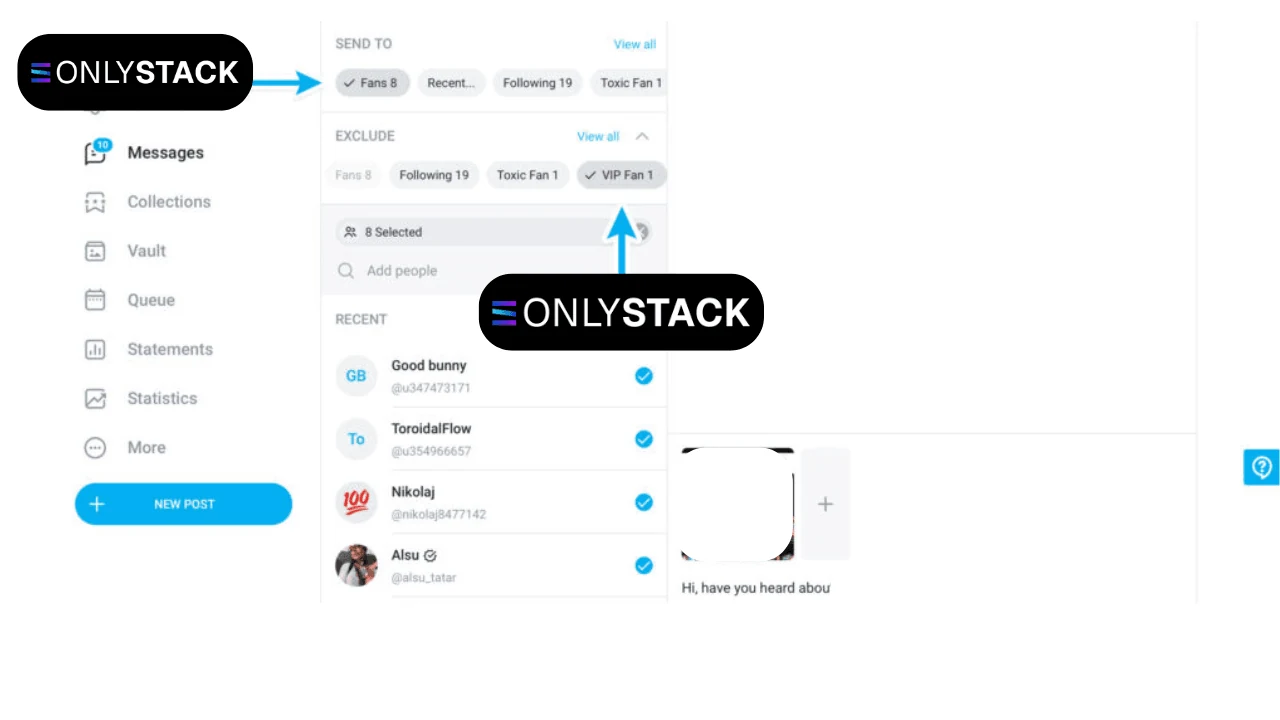
In the composer, select the lists that should receive the message, then click the lists you want to exclude. For example, you might send a PPV to all fans but exclude your VIP list of high spenders, so they don't feel spammed and you can message them one by one.
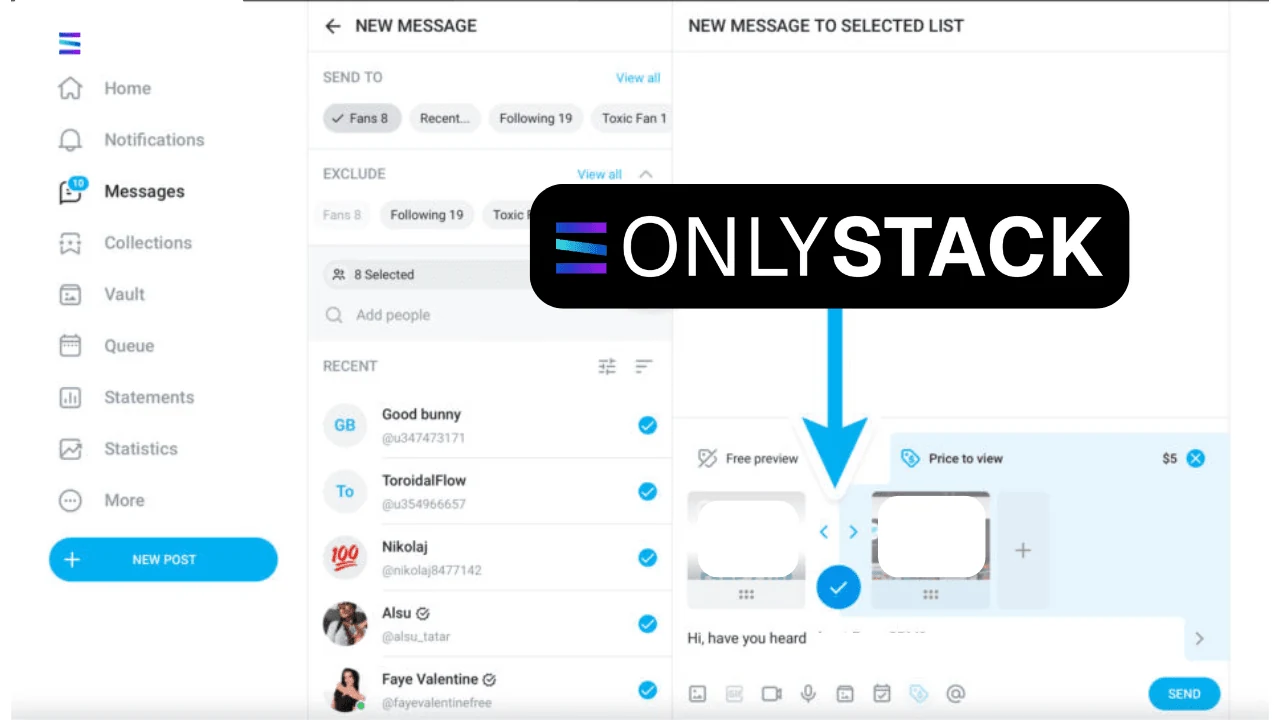
How to add a free preview to a PPV mass message
Add the media from your vault, then click the left arrow and drag the item you want to unlock for free to the left. That item is shown free; the rest stays locked until the fan pays.
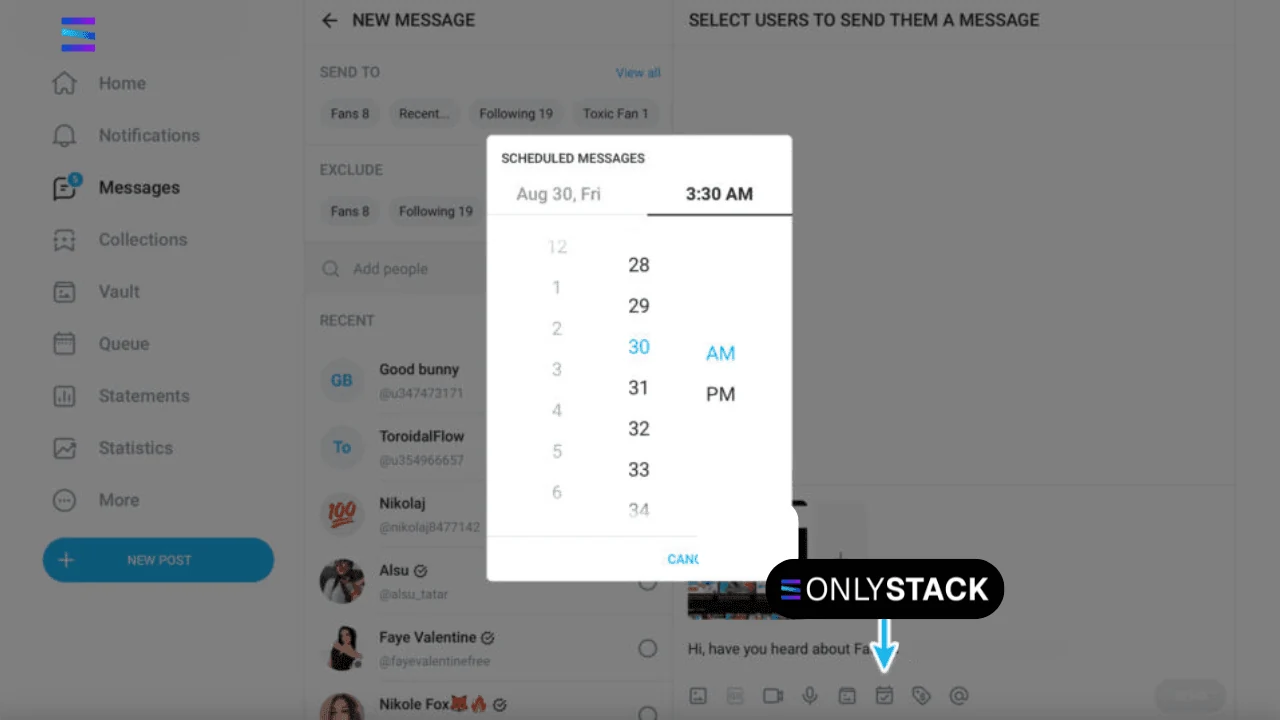
How to schedule a mass message
Click the schedule icon in the composer, pick a date and time, and press Schedule. The message goes out at that time.
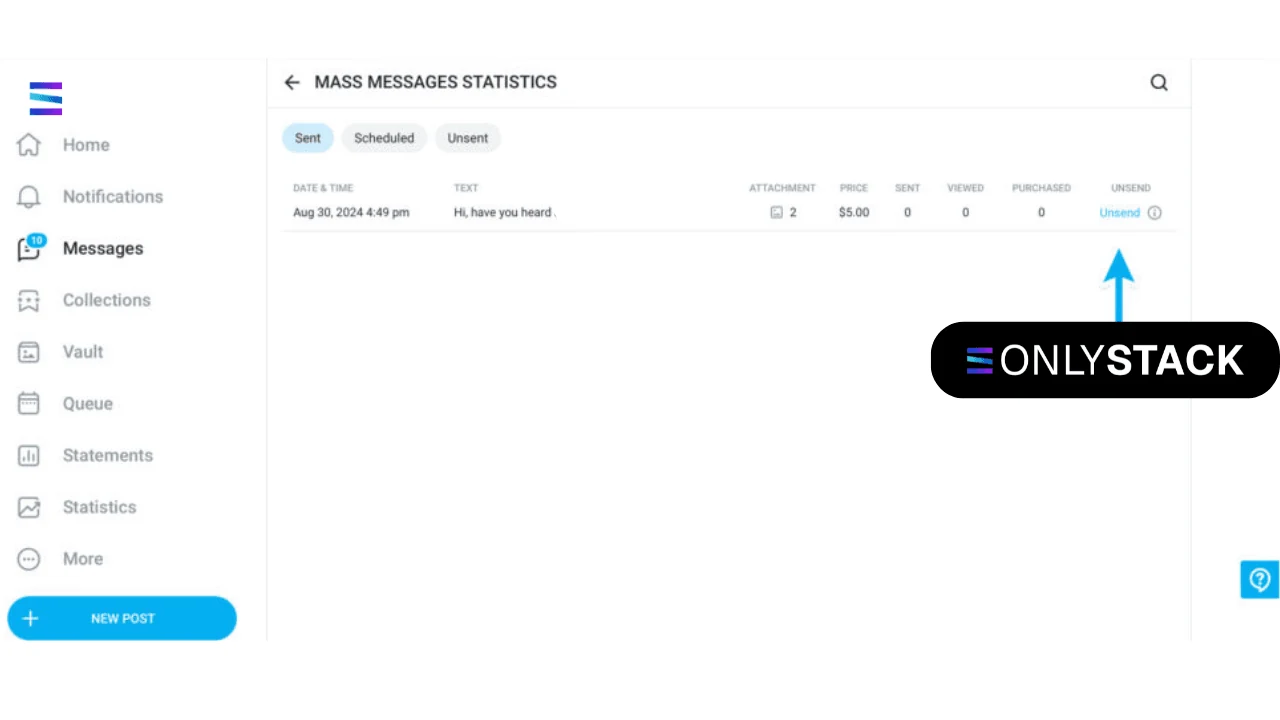
How to unsend a mass message
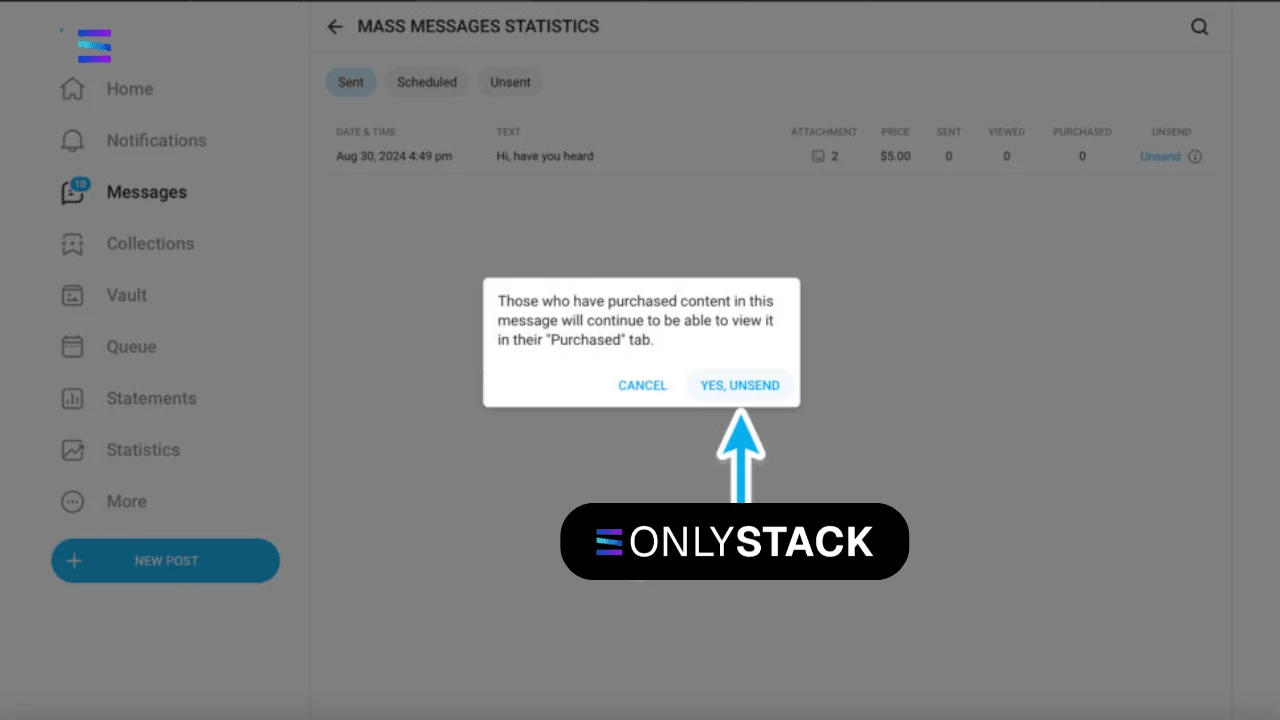
Open the mass message statistics, press Unsend and confirm with Yes, Unsend. The message disappears for fans who haven't opened it yet. Unsending is only available for a limited time after sending, so do it soon. The same statistics show how many messages were sent, viewed and bought.
How often should you send OnlyFans mass messages?
How often you send OnlyFans mass messages has no single right answer, but a few a week is a practical start. Mix free messages, such as questions and check-ins, with paid offers. Watch views, purchases and renewals, send fewer if they drop, and never repeat the same offer quickly.
OnlyFans does not publish a daily cap on mass messages (see OnlyFans limits explained). There is no single right number, and creators on r/onlyfansadvice send very different amounts. A practical approach:
- Start with a few a week, and mix free messages (questions, check-ins) with paid ones.
- Watch your statistics. If views or purchases drop, or fans stop renewing, send fewer.
- Avoid sending the same offer twice to the same fans in a short time.
The goal is for fans to look forward to your messages, not to mute them.
Can you send a mass message to expired fans?
A mass message reaches your current fans and the lists you choose. To reach people whose subscription has ended, many creators follow their expired fans back. In a thread on r/onlyfansadvice, creators explain that this lets you send a mass message to the people you follow. Win-back messages (ideas 16–19 above) work well here. See also our guide to OnlyFans expired fans.
Mass messages vs direct messages
| Mass message | Direct message | |
|---|---|---|
| Who gets it | Many fans at once, by list | One fan |
| Best for | New content, offers, check-ins | Conversations, customs, top spenders |
| Feels | Like a broadcast | Personal |
| Time it takes | One message for everyone | One reply per fan |
Most creators use both: mass messages to reach everyone and start conversations, and direct messages to close sales one fan at a time.
Send OnlyFans mass messages automatically with OnlyStack
If you run several creator accounts, sending mass messages by hand takes hours. For what OnlyFans' terms allow, see our guide to OnlyFans automation. OnlyStack's OnlyFans automations include:
- Mass message: one broadcast to an audience you choose (a list, everyone online, or specific fans) on a schedule. Add a price and it goes out as a PPV.
- Split PPV mass message: the same PPV sent to fans grouped by spend and how recently they bought, each group at its own price; fans who already own it are left out.
- Mass message follow-ups: each follow-up goes only to the fans who ignored the message before it; a fan who replies or buys drops out.
- Message everyone online: one broadcast to every fan who is online right now, with text that matches the time of day.
Frequently asked questions
What should I write in an OnlyFans mass message?
Keep it to two or three sentences with one goal: welcome a fan, sell a PPV, ask a question or win back a quiet fan. Use the 30 examples above as a starting point and write them in your own voice.
Can I send a PPV as a mass message?
Yes. Add media, set a price and choose who receives it. Add a free preview so fans can see what they are buying.
Can I schedule an OnlyFans mass message?
Yes. Click the schedule icon in the composer, pick a date and time and press Schedule.
Can I unsend a mass message?
Yes, for a limited time after sending. Open the message statistics and press Unsend. It disappears for fans who haven't opened it.
Why are my mass messages not getting opened?
The usual reasons are sending too often, long messages that hide the offer, and paid messages without a preview. Send fewer, put the offer in the first line, and attach a free preview.
For a related next step, read How to Create OnlyFans Welcome Messages.